Why a Padlock Icon Cannot Tell You Who Is Behind a Website
A padlock icon tells you about an encrypted browser connection, not who runs the site. Learn how to check a website’s identity and purpose separately.
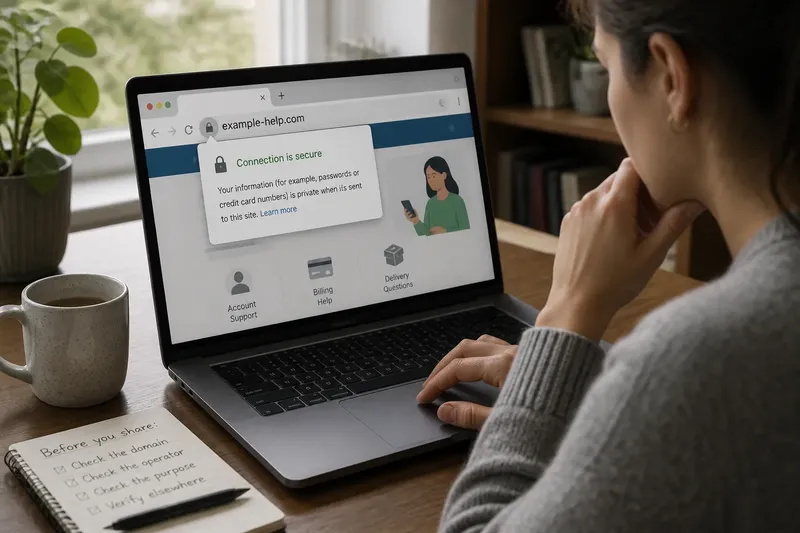
Why can a website show a padlock and still leave you unsure who runs it? The padlock icon tells you that your browser has established an encrypted connection to the site address shown in the address bar. It does not identify the person or organization behind that address, or confirm that the site’s claims are honest.
That distinction matters when a page asks for a password, payment details, personal information, or a decision based on its claims. Treat the connection indicator as one narrow technical cue. Assess the site’s identity and purpose separately, using details you can check rather than the icon’s reassuring appearance.
What the padlock means
Browsers use an encrypted connection, commonly through HTTPS, to help protect information traveling between your browser and a website. The connection indicator reflects that the browser has connected securely to the domain in the address bar and that the connection meets the browser’s technical requirements.
Encryption can make it harder for someone on the network between you and the site to read or alter the information in transit. It does not make every part of the site trustworthy. A deceptive site can use HTTPS, too; encryption protects the connection to that site, not your judgment about its operator.
Look at the actual address, not just the icon. A padlock beside example.com does not mean you are visiting example.com if the address is instead example-help.com or a different domain with a similar name. The browser is showing a secure connection to the address you entered or opened, which may not be the address you intended.
What it cannot establish
The padlock does not tell you whether a company is legitimate, whether a person is who they claim to be, or whether a page is authorized to use a brand’s name. It also does not verify that a product will arrive, a support agent works for the company, or a medical or financial claim is sound.
Nor does it tell you what the site does with information after it arrives. A secure connection can carry data to a site operator; it does not, by itself, reveal the operator’s privacy practices, internal safeguards, or reasons for requesting that data. Read the request in context and consider whether the information is needed for the task you came to complete.
Browsers may display connection details differently, and some no longer show a prominent padlock. The label or icon can change as browser interfaces evolve, but the underlying question remains: what does the address establish, and what still needs checking?
Check the site’s identity
Start with the domain name, the part of the address that identifies the site you are visiting. Read it from right to left around the main domain, and watch for extra words, misspellings, hyphens, or endings that differ from the organization’s known address. A familiar logo or page title is easy to copy; the domain is a more useful clue, though it is not proof on its own.
If you arrived through an email, text, search ad, or social post, do not assume its link is the best route. Open a fresh browser tab and type an address you already know, use a saved bookmark you created earlier, or find the organization through a source you trust. This helps separate the identity question from the message that brought you there.
Then look for details that connect the site to a real, accountable operator:
- About or company information: Does it name an organization and describe what it does in specific terms?
- Contact options: Is there a usable way to reach support, such as a business email or phone number, rather than only a form that collects your details?
- Consistent identity: Do the site name, domain, contact details, and stated operator fit together without unexplained changes?
- Policies: Are privacy, returns, or service terms written for this site and relevant to its actual offer?
- Independent confirmation: Can you confirm the relationship through a separate channel, such as an organization’s established app or a phone number from a document you already have?
These clues are useful for deciding what to verify next, not for awarding a site a blanket pass. A polished page can provide vague or copied details, while a small legitimate organization may have a simple site. Look for consistency and a verifiable route to the claimed operator instead of judging by visual finish alone.
Separate identity from purpose
Knowing who operates a site is not the same as knowing why it wants your attention or information. A real organization may host a page for a particular campaign, service, or transaction; that context still matters. Ask what the page is asking you to do and whether that request matches the reason you arrived.
Check whether the page explains its offer in plain language. If it asks for an account, payment, or sensitive information, look for a clear connection between the request and the task. Be wary of a page that demands extra information without explaining why, pushes you toward an immediate decision, or makes claims that cannot be traced to a named source or policy.
Consider a message that says your delivery is on hold and links to a page requesting a card number. Even if the page has a padlock, the indicator only concerns the connection. You could open the delivery company’s known app or type its established web address yourself, then check whether the shipment needs action there; the observable result is whether the same request appears through that independent route.
For claims about a product, organization, or service, trace the claim to its source. A site’s own description explains what it says about itself, but it does not independently confirm that description. Look for details that can be checked elsewhere, such as a named operator, published terms, or confirmation through a channel the organization already uses.
When does the padlock matter?
Does HTTPS mean a site is safe?
It means your browser has an encrypted connection to the domain in the address bar, subject to the browser’s checks. It does not show that the site operator is honest, the page is accurate, or the request is appropriate.
Can a scam site use a padlock?
Yes. A deceptive site can use HTTPS, so the icon is not a reliable way to distinguish an honest site from a fraudulent one. Check the domain and claimed operator through a separate route before sharing sensitive information.
What should I check before entering a password?
Read the domain carefully and confirm you reached the expected service through a known address, bookmark, or official app. If a link arrived unexpectedly or the sign-in request seems out of context, stop and open the service independently.
What if the browser warns about the connection?
Do not bypass the warning to enter a password, payment details, or personal information. Close the page and reach the organization through a known channel; if the site is for work or a service you depend on, ask its support team to clarify the warning.
Make a separate trust decision
Think of the connection indicator as answering one question: is the browser’s connection to this address encrypted? Then ask two different questions: who says they operate the site, and what are they asking you to believe or do? Keeping those questions separate prevents a technical cue from silently standing in for an identity check.
For a low-stakes page, you may only need to confirm the address and purpose. For a login, purchase, or request for sensitive information, take the extra moment to use a known route and confirm the operator independently. If the identity remains unclear or the request does not make sense, leave the page and contact the organization through details you obtained elsewhere.
A padlock can be useful evidence about the connection, but it is not a profile of the people behind a website. The practical habit is to read the address, verify the claimed operator through a separate channel, and judge the page’s request on its own terms. That is how to assess website identity without asking one small icon to answer questions it cannot answer.